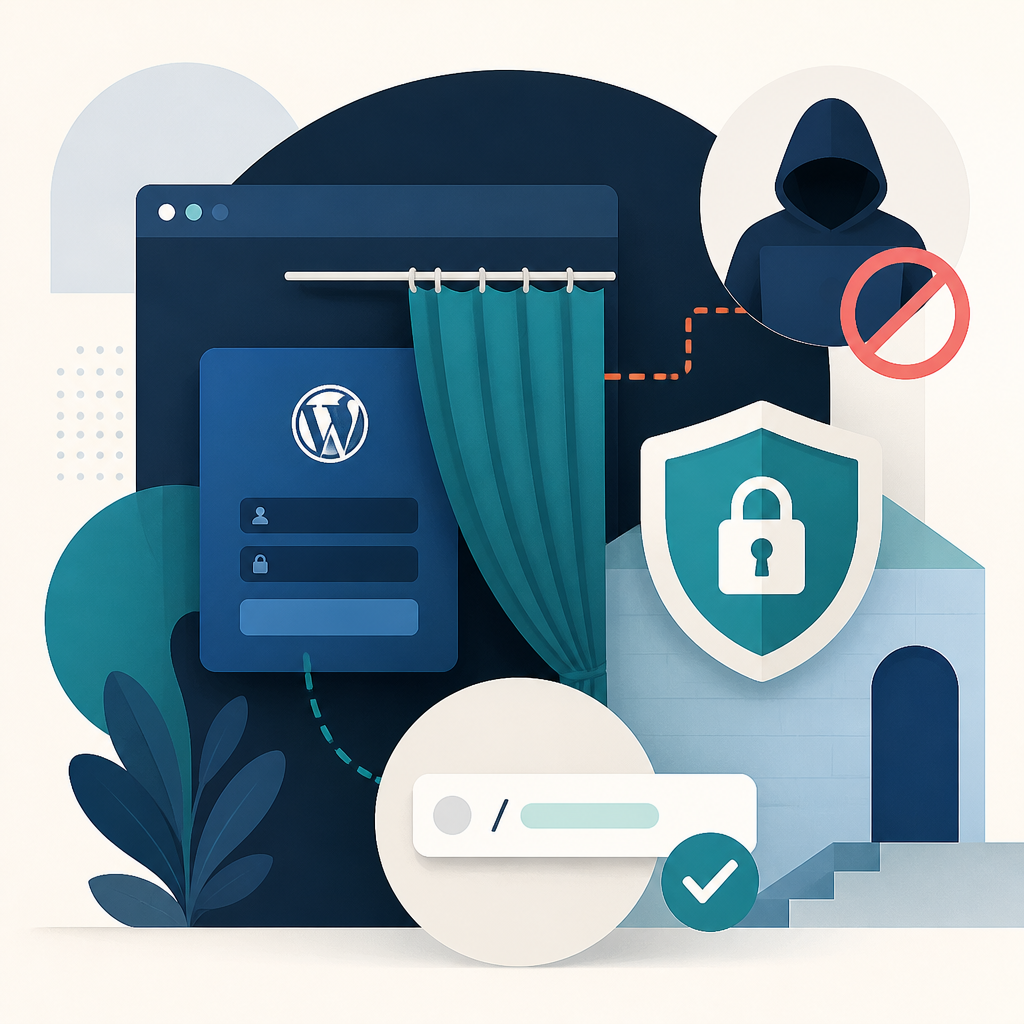
Every WordPress site comes with the same two login URLs out of the box: example.com/wp-admin and example.com/wp-login.php. Any bot or attacker who wants a crack at your site knows exactly where to look. Changing your WordPress login page URL to something custom is one of the simplest, most effective things you can do to cut down on automated attacks.
Key takeaways
- WordPress default login URLs are the same on every site, making them a trivial target for bots and brute-force attacks.
- You can change your login URL via a lightweight plugin, a small code edit to your
.htaccessfile, or a full security plugin. - WPS Hide Login is free, easy to set up, and won't slow your site down.
- After changing the URL, make sure your team know the new address and have a reliable backup way to log in.
- Hiding the login page reduces failed login attempts noticeably, but it works best alongside other measures like two-factor authentication (2FA).
Why the default WordPress login URL is a problem
Because every WordPress installation starts with the same login paths, automated bots don't need to guess where your login page is. They already know. It's a bit like having your front door right on the main street with a sign above it, rather than tucked down a less obvious path. Moving the door doesn't make your site impenetrable, but it does mean those automated attacks stop finding anything to target.
Three ways to change your WordPress login URL
There's no single right answer here. Pick whichever option suits your confidence level and how much you want to manage ongoing.
| Method | Difficulty | What you get |
|---|---|---|
| WPS Hide Login plugin | Easy | Quick setup, lightweight, free |
| Code-level change (developer) | Advanced | Most control, but must be done in WordPress, not a redirect |
| WP Security Ninja (paid) | Easy to moderate | Login URL change plus a full security suite |
Option 1: Use the WPS Hide Login plugin
This is the most straightforward route and the one we'd suggest for most small business owners. WPS Hide Login is lightweight, does exactly what it says, and won't affect your site's performance.
- In your WordPress dashboard, go to Plugins > Add New Plugin and search for WPS Hide Login. Install and activate it.
- Go to Settings > WPS Hide Login.
- Enter your new login URL slug, something that isn't obviously login-related, like
toku-portalorteam-access. - Under Redirection URL, choose where to send anyone who tries the old default URL. Sending them to a 404 page is the best option.
- Click save.
One important thing: write down your new URL somewhere secure straight away. A password manager is ideal. If you forget it and get locked out, that's a genuinely painful situation to fix.
Option 2: Code-level changes (leave these to a developer)
You might come across guides that tell you to move the login page by editing your site's .htaccess file. Be careful here: the WordPress login form is generated by PHP (wp-login.php), not served from a fixed file you can simply point somewhere else. A plain .htaccess redirect doesn't relocate the login, it just sends people (and you) to a URL where no login form exists, which can lock you out of your own admin and secures nothing.
Done properly, changing the login URL in code means hooking into WordPress itself, which is exactly what a plugin like WPS Hide Login (Option 1) already does safely. If you specifically want a code-level change rather than a plugin, have a developer implement it so it's done without risking access to your site. For most owners, Option 1 is the safer, simpler choice.
Option 3: Use WP Security Ninja
If you want more than just a hidden login page, a paid security plugin like WP Security Ninja gives you a whole suite of protection in one place. Think of it as a security guard, CCTV, and alarm system rolled into one.
- In your WordPress dashboard, go to Plugins > Add New Plugin, search for WP Security Ninja, and install it.
- Navigate to Security Ninja > Firewall and click Enable Firewall.
- Once the firewall is active, you'll see a range of options, including the ability to change your default login URL.
While you're in there, have a look at what else the plugin offers. Two-factor authentication (2FA), for instance, is a powerful extra layer, even if someone somehow learns your password and your login URL, they still can't get in without the second factor.
A few extra things worth doing
Changing the URL is a solid first step, but you can go further if you want tighter control:
- Add IP-based restrictions to your new login URL, so only specific IP addresses can even reach it.
- Consider using a subdomain for your admin area to add another layer of separation.
If you're serious about keeping your WordPress site secure, our website maintenance service includes ongoing security monitoring so you're not left keeping an eye on all of this yourself.
What about your legitimate users?
Hiding the login page only works if your own team can still find it. A few practical steps:
- Keep a secure document (not a Post-it note) with the new URL in it.
- Share login details through a password manager.
- Look into Single Sign-On (SSO) for teams with multiple users.
- Always have a backup way to access the admin area, if you're with a host that offers a cPanel single sign-on into WordPress, use that as your fallback.
How do you know it's working?
Keep an eye on your security logs for a few weeks after making the change. You'll almost certainly see a significant drop in failed login attempts. Most security plugins show this in a dashboard, so it's easy to track. It's a satisfying thing to watch.
Hiding the login page is a good start, not the finish line
This is one of the easiest security wins available to any WordPress site owner. It won't make your site completely hackproof, nothing will, but it takes your login page off the main street and down a path that automated bots won't find. Pair it with strong passwords, 2FA, and keeping WordPress, themes and plugins up to date, and you're in a much stronger position.
If you'd rather hand the security side of things to someone else, take a look at how our WordPress development and maintenance team can help keep your site locked down and running smoothly.
Frequently asked questions
Will changing my WordPress login URL break anything on my site?
It shouldn't, provided you do it carefully. Using a plugin like WPS Hide Login is the safest route. If you edit the .htaccess file directly, always back it up first so you can restore it if something goes wrong.
What if I forget my new WordPress login URL?
If your host offers a cPanel single sign-on into WordPress, you can use that to get back in without needing the login URL. Otherwise, you'd need to access your site files via cPanel and reverse the change. Save your new URL in a password manager to avoid this entirely.
Is hiding the WordPress login page enough to keep my site secure?
It's a useful layer, but not enough on its own. It reduces automated attacks noticeably, but you should also use strong passwords, keep WordPress and all plugins updated, and ideally enable two-factor authentication (2FA) for a more complete approach.
Which method is best for a non-technical user?
The WPS Hide Login plugin is the easiest option. It takes a few minutes to set up from inside your WordPress dashboard, requires no code editing, and is free.
Related articles

Related services
Need a hand with this? Here's how IceBoxDesigns can help.