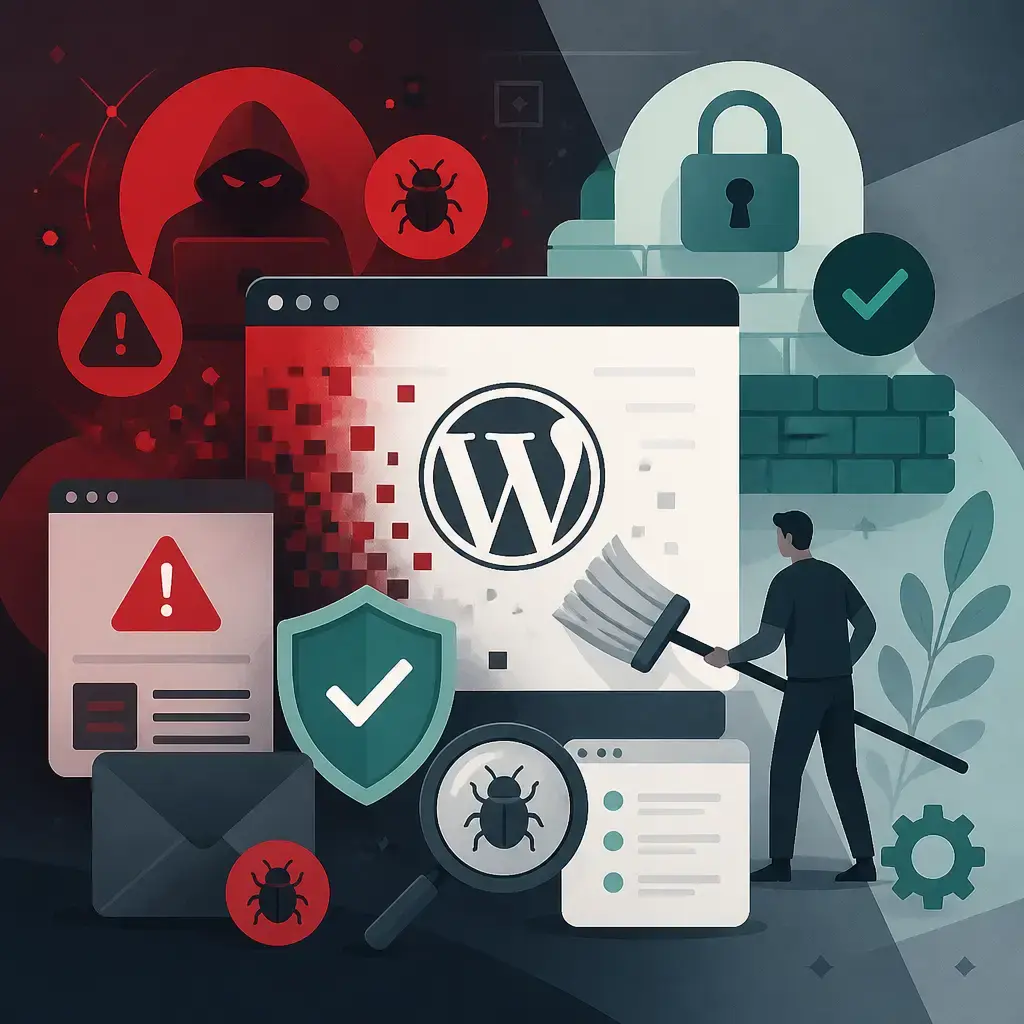
If your WordPress site is behaving strangely, redirecting visitors somewhere else, sending emails that land in spam, or just running inexplicably slowly, there's a real chance it's been compromised. WordPress malware removal isn't something to put off. The longer malicious code sits on your server, the more damage it does: to your search rankings, your visitors, and your reputation.
This guide covers everything from spotting the early warning signs to cleaning the infection, hardening your site so it doesn't happen again, and understanding why having a proper maintenance plan matters more than any single security plugin.
Key Takeaways
- Malware can sit on a WordPress site for months without being obvious, slow speed, spam emails and unexpected redirects are common early signs.
- A full clean needs to cover files, the database, CRON jobs, server logs and file permissions, not just a surface scan.
- Automated scanners miss novel threats and can delete legitimate custom files. A specialist-led approach is safer.
- Backups are your single most important safety net. If you don't have recent, clean backups, recovery becomes far harder and more expensive.
- Hardening steps, protecting
.htaccess, hiding the login URL, locking down the plugin folder, significantly reduce your attack surface after a clean.
6 Warning Signs Your WordPress Site Has Malware
Malware is often quiet for a long time. Attackers don't want you to notice, they want to keep using your server. Here's what to watch for:
1. Your site is suddenly slow. Hackers can deploy DoS-style attacks that overload your server resources. If performance has dropped without any obvious reason, it's worth investigating.
2. Your emails are landing in spam. When a web server is infected, other email servers start treating messages from it as spam. If your business emails are getting filtered, your hosting account may be sending bulk spam without your knowledge.
3. Visitors are being redirected. Attackers often use cross-site scripting (XSS) techniques to push your traffic to third-party sites. If customers are telling you they're landing somewhere unexpected, treat it as an emergency.
4. Pop-up or spam ads are appearing. This typically happens when an insecure plugin or theme has been compromised. The attackers earn money every time a visitor clicks one of those ads.
5. Your core files have been modified. Hackers insert backdoors and malicious code by altering standard WordPress files. Any unexpected changes to index.php, wp-settings.php or wp-config.php should be treated as suspicious.
6. Unusual activity in your server logs. Your access logs show who's been hitting your site and how. Patterns of requests to strange file paths, or masses of requests from unfamiliar IPs, are worth examining closely.
What a Thorough WordPress Malware Removal Process Actually Looks Like
A surface scan isn't enough. Malware embeds itself in multiple places simultaneously, so a proper clean needs to cover all of them.
Scanning All Backend Files
The first step is scanning every file on the server for known malware signatures and heuristic indicators. This includes the obvious candidates but also the less obvious ones. Malicious files often have randomly generated names, things like 1gkj2saf.php, 862349.php, or Ads8DU2.php, but attackers also inject code directly into standard files like index.php, wp-settings.php and wp-config.php.
Hidden files deserve particular attention. Files with unusual extensions such as .otc, .ott or oddly named .css files (for example .gk23sa.css, .1942t53.ott or .2634gkgre.otc) are almost always malicious. A proper scan catches these too.
Frontend Scanning for Infections
This step looks at what's actually being served to visitors: HTTP redirects pointing off-site, links to third-party domains, open directories (such as .git or .svn folders that shouldn't be publicly accessible), unusual HTTP response codes, and suspicious JavaScript files or iFrame calls. These are the things that harm your visitors and your Google rankings.
Checking Plugins and Themes for Known Vulnerabilities
Every installed plugin and active theme should be reviewed for known vulnerabilities. Outdated plugins are one of the most common entry points for attackers. Any that have known issues need updating to their latest stable versions immediately.
Database and CRON Job Review
This is the step many DIY cleanups miss. Malware doesn't only live in files. It can be written into WordPress database tables, including tables created by plugins and themes. Some malware also adds itself to WordPress CRON jobs, the scheduled tasks that run automatically in the background. This is how sites get reinfected even after what looks like a successful clean: the CRON job re-downloads and reinstalls the malware on a schedule. Always check the cron tasks.
Security Audit: Logs, Permissions and Outgoing Email
The final step is reviewing all available site logs (web server logs and any security plugin logs), verifying that file permissions are set correctly, and checking for unusual outgoing email activity. Incorrect file permissions are a common oversight that leaves doors open even after malware has been removed.
Why Automated Scanners Aren't Always Enough
Automated tools are useful for catching known, catalogued threats. They're low-cost, sometimes free, and they're worth running. But they have two significant weaknesses.
First, automated solutions tend to be cautious, they'd rather flag a legitimate file as suspicious than miss a threat. This means they can delete or quarantine custom code that's actually part of your site, causing real data loss in the process. A human specialist can tell the difference between your bespoke code and malicious code, even when they look similar.
Second, new malware variants appear every day. A novel attack that hasn't yet been catalogued won't show up in any signature database. Only a human investigator can spot anomalous behaviour that doesn't match a known pattern.
This is why specialist-led WordPress malware removal is genuinely worth the investment for anything beyond a basic brochure site.
Practical Hardening Steps to Stop Reinfection
Cleaning a site without hardening it is like patching a window but leaving the front door open. Once you're clean, these steps make a real difference.
Protect and Configure Your .htaccess File
The .htaccess file at the root of your WordPress install controls how your server handles requests. It's powerful and attackers know it. Here's what to do with it:
- Make sure it contains the standard WordPress rewrite rules and nothing else unusual.
- Block direct access to sensitive files. You can add rules to prevent direct browser access to
wp-config.phpand the.htaccessfile itself. - Review it after any malware removal, injected redirect rules are commonly added here.
If you're not comfortable editing .htaccess directly, ask a developer or your maintenance provider to review it. A mistake here can take your site offline.
Hide or Rename Your WordPress Login Page
The default WordPress login URL is /wp-admin or /wp-login.php. Every bot and automated attack tool on the internet knows this. Moving it to a custom path stops the vast majority of brute-force login attempts before they even start.
Plugins like WPS Hide Login let you change the login URL to something only you know, without touching any core files. This won't stop a determined attacker who's already on your server, but it dramatically reduces the noise and the risk from automated bots.
Lock Down the Plugin and Uploads Folders
PHP files should never be executed from your wp-content/uploads folder, that directory exists for media, not code. Blocking PHP execution there closes a common backdoor that attackers use to re-establish access after a clean.
You can do this by placing a small .htaccess file inside the uploads folder. A competent developer or your maintenance provider can add this safely. Similarly, reviewing who can write to the plugin folder, and ensuring that only authorised processes can add files there, limits the damage if a plugin is exploited.
Update Everything, and Keep It Updated
This sounds obvious, but it's still the number one thing that gets skipped. Every outdated plugin, theme or WordPress core version is a potential open door. Update WordPress core, all plugins and your theme regularly, ideally as part of a managed monthly (or more frequent) maintenance plan rather than something you do when you remember.
Install a Dedicated Security Plugin
After a clean, a security plugin gives you ongoing monitoring, firewall protection and scanning. It won't replace good practices, but it adds a meaningful layer of defence. Log-based plugins that track login attempts, file changes and suspicious requests give you the visibility to catch problems early.
Set Up Two-Factor Authentication
Even if an attacker gets hold of a password (through phishing, a data breach or brute force), 2FA stops them logging in. Enable it on all admin accounts as a minimum.
Backups: Your Most Important Safety Net
All of the above is important, but nothing matters more than backups. If you have a clean, recent backup, a malware incident becomes a recovery operation rather than a disaster. If you don't have backups, you're at the mercy of whatever state your site is currently in.
A good backup strategy means:
- Daily automated backups of both files and the database.
- Off-site storage, backups stored only on the same server as your site are useless if the server is compromised.
- Tested restores, a backup you've never tested restoring from may not actually work when you need it.
- Retention, keeping multiple historical versions, not just the most recent one, so you can restore to a point before an infection took hold.
This is exactly what a proper website maintenance plan should include. If your current hosting or agency can't confirm where your backups are stored, how recent they are and how to restore them, that's a problem worth fixing today rather than after an incident.
Why Having a WordPress Agency on Your Side Changes Everything
When a site gets infected, the panic of not knowing what to do, or not having the access credentials, the technical knowledge or the time to fix it, makes everything worse. A specialist team that already knows your site, holds your backup credentials and has a recovery process ready can cut the response time dramatically.
The difference between a one-day recovery and a week-long scramble usually comes down to preparation: clean backups, documented access credentials and a maintenance relationship with people who know what they're doing.
If your WordPress site handles customer data, takes orders or drives leads for your business, ongoing professional maintenance isn't a luxury, it's insurance.
A Quick Reference: What to Do If Your Site Is Infected Right Now
| Step | What to Do |
|---|---|
| 1. Don't panic, but act fast | Take the site offline or put it in maintenance mode if possible |
| 2. Preserve your evidence | Don't delete anything yet, you need logs to understand what happened |
| 3. Check your backups | Locate the most recent clean backup and confirm it can be restored |
| 4. Change all passwords | Admin, FTP/SSH, hosting panel and database, do all of them |
| 5. Scan thoroughly | Files, database, CRON jobs, server logs and file permissions |
| 6. Remove and clean | Delete malicious files, sanitise the database, remove bad CRON entries |
| 7. Harden | Update everything, review .htaccess, hide login, lock uploads folder |
| 8. Monitor | Set up ongoing scanning and alerting so you catch any reinfection early |
If you're at step 5 or 6 and you're not confident in what you're looking at, stop and get professional help. Incomplete malware removal is often worse than none, it gives a false sense of security while backdoors remain active.
Dealing with a hacked site is stressful, but it's recoverable, especially if you have backups and the right support. Our website maintenance plans include regular backups, security monitoring and WordPress updates, so you're not starting from scratch when something goes wrong. If your site has been compromised or you're worried it might be, get in touch and we'll take a look.
Frequently asked questions
How do I know if my WordPress site has malware?
Common signs include your site redirecting visitors to other websites, emails from your domain landing in spam folders, unexpected pop-up or spam ads appearing, slower-than-usual performance, core files being modified without your knowledge, and unusual patterns in your server access logs.
Can I remove WordPress malware myself without a specialist?
For straightforward infections, an automated security plugin can help. But automated tools can miss novel malware variants and may delete legitimate custom code. A specialist is better equipped to distinguish your files from malicious ones and to check less obvious hiding places like the database and CRON jobs.
What is the most important thing to have before a malware incident hits?
Clean, recent backups stored off-site. If you have a good backup, you can restore to a point before the infection. Without one, your options are much more limited and recovery takes significantly longer.
Why do sites get reinfected after malware removal?
Reinfection usually happens because malware was also injected into WordPress CRON jobs (scheduled tasks that run automatically) or because the original vulnerability, such as an outdated plugin, wasn't fixed after the clean. A thorough removal process must address both.
Related articles
Related services
Need a hand with this? Here's how IceBoxDesigns can help.