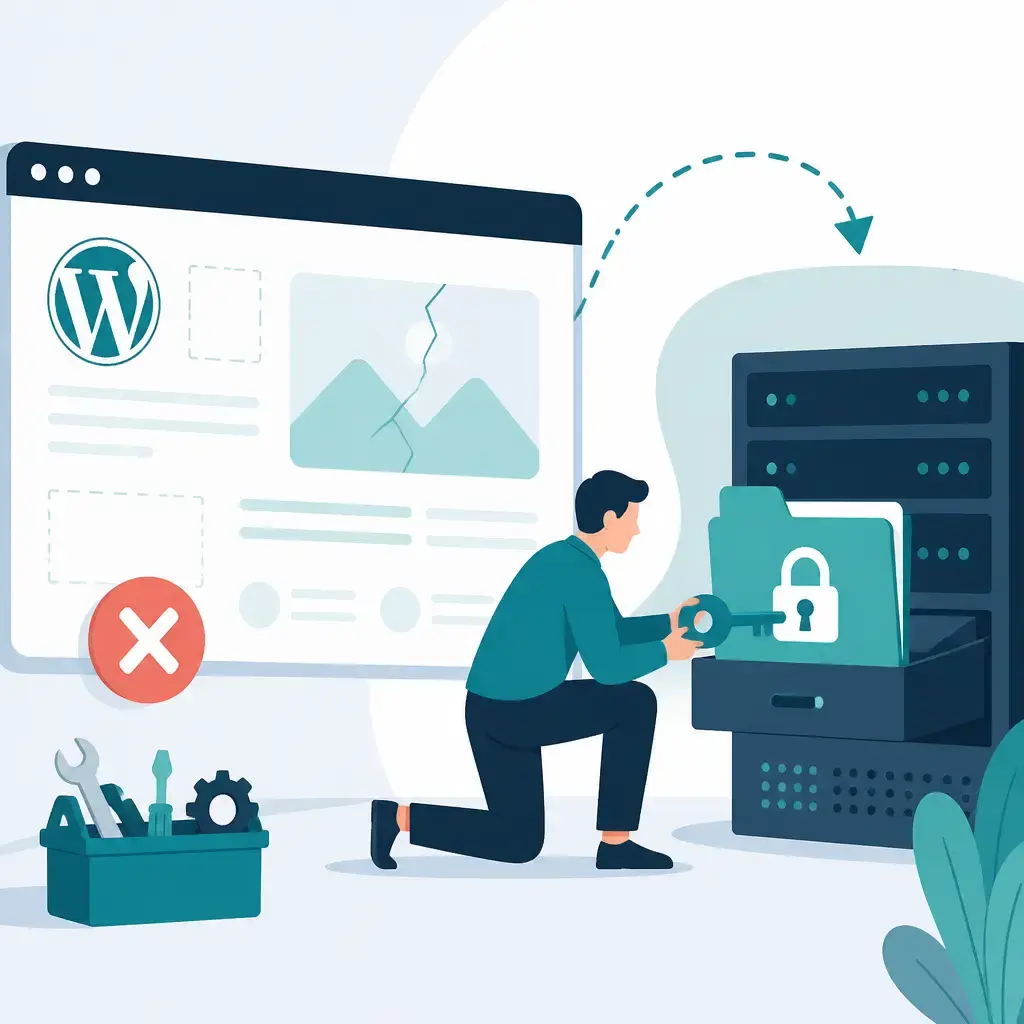
If your WordPress site looks completely unstyled after a migration, buttons gone, layouts collapsed, JavaScript doing nothing, don't panic. You've probably already checked your PHP version, your plugins, and your theme. If none of that fixed it, the problem might be sitting a level deeper: file permissions.
Key Takeaways
- File permissions control who can read, write, or run each file and folder on your server.
- Migrations often scramble those permissions, stopping the server from sending CSS and JavaScript to visitors' browsers.
- The standard safe settings for WordPress are 755 for folders and 644 for files.
- Two
findcommands run from the command line will reset everything in one go. - Always take a full backup before touching permissions, and make sure you're in the right directory.
What File Permissions Actually Are
Think of file permissions as a set of rules that tell your server who is allowed to do what with each file or folder. On Linux-based servers (which is where most WordPress sites live), those rules cover three groups: the file owner, a group of users, and everyone else. For each group, the server tracks three things: can they read the file, can they write to it, and can they execute (run) it?
Those rules get summarised as a three-digit number. 755 means the owner can read, write, and open a folder, while everyone else can read and open it but not write to it. 644 means the owner can read and write a file, while everyone else can only read it. You might also see these written out as rwxr-xr-x (755) or rw-r--r-- (644).
Why a Migration Breaks Them
A few things happen during a site move that can knock permissions out of shape.
The old server and the new one may have different default settings, so files that arrived with one set of permissions get treated differently in their new home. The transfer method matters too, moving files over FTP, for example, can silently alter permissions along the way. There's also the question of file ownership: when files land on a new server, the "owner" recorded against them may change, and the server may decide it's no longer allowed to serve them.
The end result? The server refuses to read your CSS or JavaScript files, so the browser never gets them. Your site loads, but it looks like a plain HTML document from 1997.
How to Reset WordPress File Permissions
If you're comfortable using the command line (or your host gives you SSH access), two commands will sort this out. Run them from your WordPress root directory, that's the folder that contains wp-config.php.
find . -type d -exec chmod 755 {} \;
find . -type f -exec chmod 644 {} \;
Here's what each one does:
Line 1 searches for every directory (-type d) inside your current location (.) and runs chmod 755 on each one. That sets folders so the owner has full access and everyone else can read and navigate into them, which is what WordPress needs to serve files correctly.
Line 2 does the same thing for files (-type f), applying chmod 644. That lets the owner read and edit each file, while the server (and everyone else) can read it. Your CSS and JavaScript files need to be readable by the server so they can be sent to visitors' browsers.
The {} \; at the end of each command is just the syntax that tells the system to apply the action to each item it finds, one at a time.
Before You Run Anything, Read This First
A few things are worth sorting out before you touch a single permission.
Take a full backup. This is non-negotiable. If something goes wrong, wrong directory, unexpected server config, anything, you need a restore point. Our website maintenance service includes regular backups precisely for moments like this.
Check you're in the right folder. Running these commands in the wrong directory could reset permissions on files that were never yours to touch, and that can cause real damage. Double-check you're sitting in the WordPress root before you run anything.
Ask your host if you're unsure. While 755 for folders and 644 for files is the standard for WordPress, some hosting environments have slightly different requirements. If your host has a support team, a quick message asking "what are the recommended file permissions for WordPress on your servers?" will save you guessing.
These settings are considered secure. The 755/644 combination is the widely accepted standard for WordPress. It doesn't leave files open to being written by the wrong users, which is what you want. Avoid setting anything to 777 (which allows anyone to write to it) unless you have a very specific, temporary reason, and even then, change it back immediately.
If It Still Doesn't Work
Resetting permissions fixes a specific class of problem. If your styles and scripts are still broken afterwards, something else is going on. A few other things worth checking:
- Plugin conflicts. Deactivate all plugins and re-enable them one by one to see if one of them is interfering.
- Theme issues. Switch temporarily to a default WordPress theme (like Twenty Twenty-Four) to rule out a theme-level problem.
- Hardcoded URLs. After a migration, your database might still contain references to the old domain. A search-and-replace across the database (using a tool like WP-CLI's
search-replacecommand, handled by a developer) can clear those up. - Caching. Clear any server-side or plugin-based cache, and do a hard refresh in your browser.
Our WordPress development team deals with post-migration issues regularly, if you've worked through the list above and still can't pin it down, it's worth getting a second pair of eyes on it.
A Quick Reference: Standard WordPress Permissions
| Item | Permission Code | What It Means |
|---|---|---|
| Folders / Directories | 755 | Owner: full access. Everyone else: read and navigate. |
| Files (CSS, JS, PHP, etc.) | 644 | Owner: read and write. Everyone else: read only. |
| wp-config.php (recommended) | 640 or 644 | Owner: read and write. Group: read. Others: none or read. |
Note: some hosts recommend 640 for wp-config.php specifically, as it's the file that holds your database credentials. Check with your host on that one.
Get Your Site Back on Track
A migration shouldn't leave your site looking broken, but when it does, file permissions are one of the first things to check. The fix is usually quick once you know where to look. If you'd rather not poke around on the command line yourself, or if your site has been through a rough migration and needs a proper audit, get in touch with the IceBoxDesigns team and we'll sort it out.
Frequently asked questions
What file permissions should WordPress folders and files be set to?
The standard for most WordPress setups is 755 for folders and 644 for files. 755 lets the owner read, write and navigate into a folder, while others can read and navigate. 644 lets the owner read and write a file, while others can only read it.
Why did my WordPress file permissions change after migration?
A few things can cause it: the old and new servers may have different default settings, the transfer method (such as FTP) can silently change permissions, and the recorded file owner can change when files move to a new server, causing the server to restrict access.
Is it safe to run chmod 755 and chmod 644 on a WordPress site?
Yes, those settings are generally considered secure for WordPress. 755 for folders and 644 for files follow the widely accepted standard. Avoid setting anything to 777 (world-writable), and always take a full backup before running any permission-change commands.
What if resetting file permissions doesn't fix my missing styles?
If the problem persists, check for plugin conflicts, try switching to a default theme, look for hardcoded old-domain URLs in your database, and clear any caches. File permissions are one possible cause, not the only one.
Related articles

Related services
Need a hand with this? Here's how IceBoxDesigns can help.