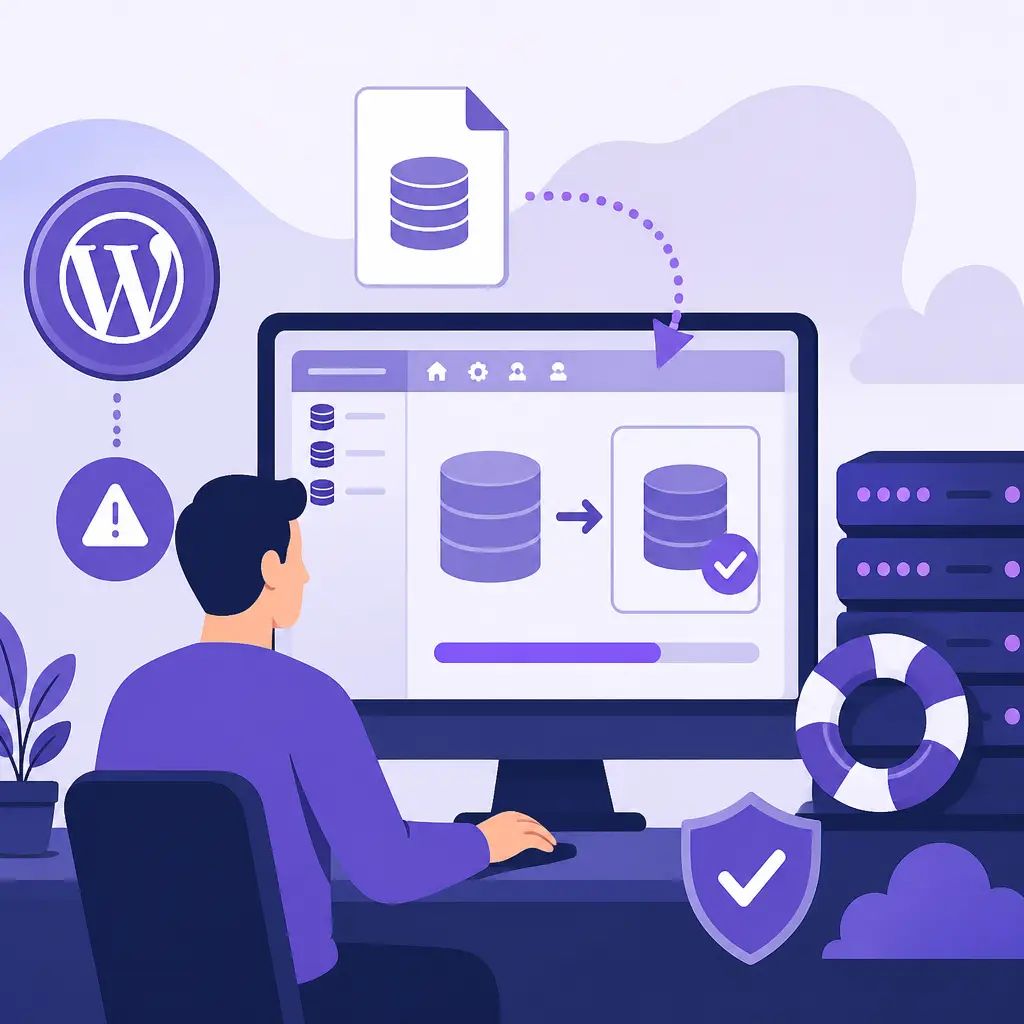
A major update has gone wrong and your site is down. Every minute it stays offline matters, so here's exactly how to import your WordPress database backup via phpMyAdmin and get things back to normal as quickly as possible.
Key takeaways
- You need a backup SQL file ready before you start. Without one, there's nothing to restore.
- The whole process happens inside cPanel and takes just a few clicks.
- Once the import finishes, clear all server-side caches manually.
- Get your site back up quickly. If Google crawls while you're down, your SEO rankings can take a hit.
Before You Start: Do You Actually Have a Backup?
This might sound obvious, but it's worth saying clearly. If you don't have a recent backup SQL file sitting somewhere safe, this process won't help you. There's nothing to import. This is exactly why taking a backup before any major update is non-negotiable.
If you do have your backup file ready, carry on.
How to Import Your Database Backup via phpMyAdmin
Follow these steps in order. Don't skip ahead.
- Log in to cPanel. Your hosting provider will have given you a cPanel login URL, usually something like
yourdomain.com/cpanel. - Open phpMyAdmin. Look for it in the Databases section of your cPanel dashboard.
- Find your database in the left-hand menu. You'll see a list of databases on the left side of the screen. Click on the correct one for your WordPress site.
- Click Import in the top menu. Once you've selected the right database, click the Import tab along the top of the screen.
- Upload your backup SQL file. Click Choose File (or Browse, depending on your setup) and select the SQL backup file from your computer.
- Click Go. phpMyAdmin will begin importing the file automatically.
Just wait for the import to finish. Don't close the browser tab or interrupt the process. Depending on the size of your database, it could take anywhere from a few seconds to a few minutes.
After the Import: Clear Your Caches
Once the import is complete, you need to clear all caches from the server. If you can access your WordPress admin panel, do it from there using your caching plugin. If you can't get into admin yet, you'll need to clear the caches manually via your server or hosting control panel.
Skipping this step can cause your site to serve stale or broken data even after a successful restore, so don't overlook it.
Why Speed Matters Here
If your site is down when Google sends its crawler, that downtime can affect your search rankings. A brief outage is usually forgivable, but the longer your site stays offline, the greater the risk. Get the import done, clear those caches, and confirm the site is loading correctly as fast as you can.
Avoid This Situation in the Future
The best time to think about backups is before anything goes wrong. A proper website maintenance routine means taking a verified backup before every major update, storing it somewhere you can actually access quickly, and testing restores periodically so you know the process works.
If managing backups, updates and restores yourself sounds like more than you want on your plate, that's completely understandable. Our website maintenance service handles all of this for you, so a failed update never has to mean a panicked late-night restore.
Get Help If You Need It
If you're mid-crisis right now and this isn't working, get in touch with us. We can step in, assess the situation, and get your site back online.
Frequently asked questions
What file format does my database backup need to be in?
Your backup needs to be a SQL file (.sql) to import it via phpMyAdmin. Most WordPress backup tools export in this format by default.
What if I don't have a database backup to import?
Unfortunately, without a backup file there's nothing to restore through this process. Contact your hosting provider immediately, some hosts keep their own server-level backups that you may be able to request.
Do I need to delete the existing tables before importing?
If your SQL backup file was exported with DROP TABLE statements (the default in most tools), phpMyAdmin will handle replacing the existing tables automatically during the import. If you're unsure, check with a developer before proceeding.
Will my site go down during the database import?
If your site is already broken due to a failed update, it's likely already down. The import itself is a server-side process and won't cause additional disruption, but your site won't be fully functional until the import is complete and caches are cleared.
Related articles


Related services
Need a hand with this? Here's how IceBoxDesigns can help.